Video coming soon
Before you start
- An email address you can open now. EasyTaxer emails you an activation code, and a six-digit code each time you sign in.
- Your National Insurance number. You add it once you are signed in, before you connect to HMRC.
- Your Government Gateway user ID and password. You type them on HMRC's website, never into EasyTaxer.
Steps: the text version of this video
-
Create your account
Here's how to sign up for EasyTaxer and connect it to HMRC. On the sign-up page, enter your email address, your name, and a password, then select Create account.
-
Confirm your email
EasyTaxer emails you a short activation code. Enter it here to activate your account.
-
Sign in
Now sign in with your email and password. For extra security, EasyTaxer emails you a six-digit code each time you sign in. Enter it to continue.
-
Add your National Insurance number
Before EasyTaxer can ask HMRC anything about your tax, it needs your National Insurance number. Choose Complete your profile, enter your number, and save.
-
Connect to HMRC
Next, select Connect to HMRC. You'll be taken to HMRC's own website to sign in, so EasyTaxer never sees your Government Gateway password.
-
Sign in on HMRC's website
HMRC explains what the software is asking for. Continue, then sign in with your Government Gateway user ID and password.
-
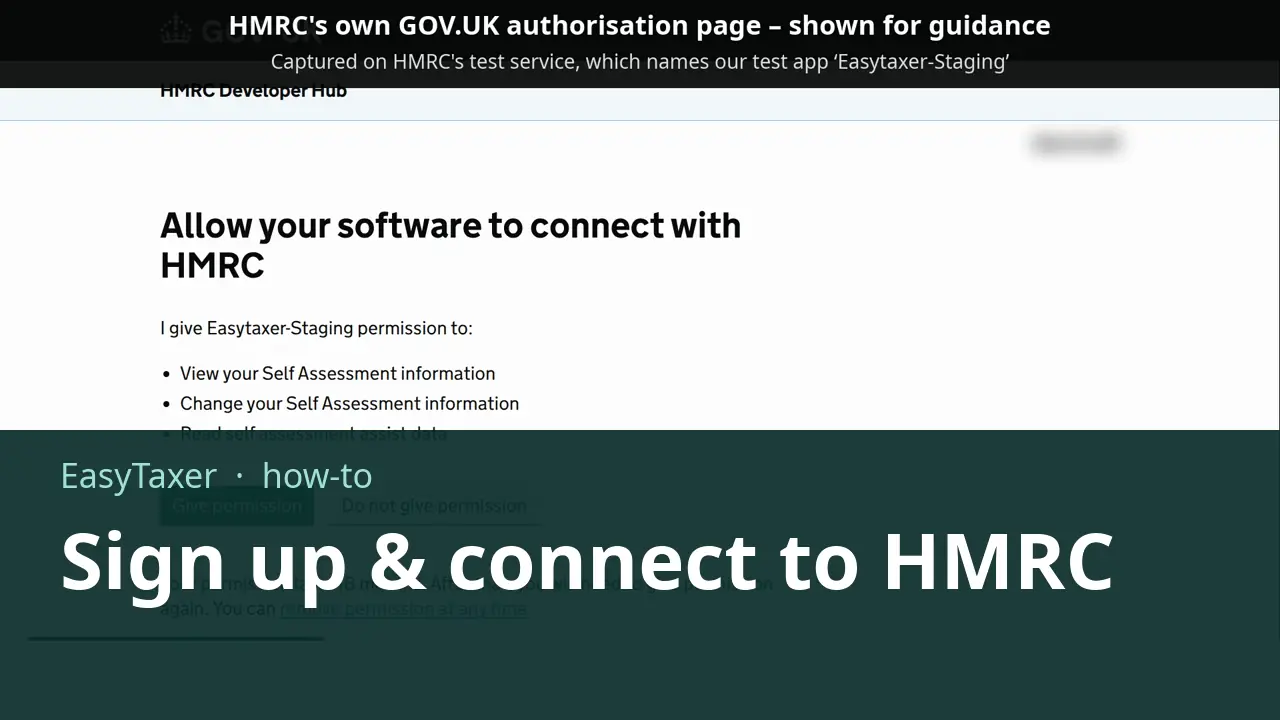
Give permission
HMRC then lists exactly what EasyTaxer may do: view and change your Self Assessment information, and read Self Assessment Assist data. Select Give permission. The permission lasts eighteen months, and you can remove it at any time.
-
You're connected
You're sent straight back to EasyTaxer, now connected. The businesses HMRC holds for you appear in the switcher at the top of the page, and the dashboard shows the next deadline for each one.
What happens next
- EasyTaxer reads the businesses HMRC holds for you and shows the next deadline for each one on your dashboard.
- The permission you gave lasts 18 months, and you can remove it at any time.
Related
- Also on this page in EasyTaxer: How do I update my personal details and password? (Settings → Account)
- Also on this page in EasyTaxer: How do I download a copy of my data from EasyTaxer? (Settings → Account → Download My Data)
- Also on this page in EasyTaxer: How do I turn on two-factor authentication with an authenticator app? (Settings → Account → Two-Factor Authentication)
- Connecting EasyTaxer to HMRC (guide)
- Getting started with EasyTaxer (guide)
- Next in this playlist: How do I choose my income sources in EasyTaxer?
- All help articles
- Still stuck? Use Contact support in the menu under your name inside EasyTaxer, or email info@easytaxer.com.
Checked against EasyTaxer on 25 September 2026. Screens can change between releases; if something here does not match what you see, please tell us.