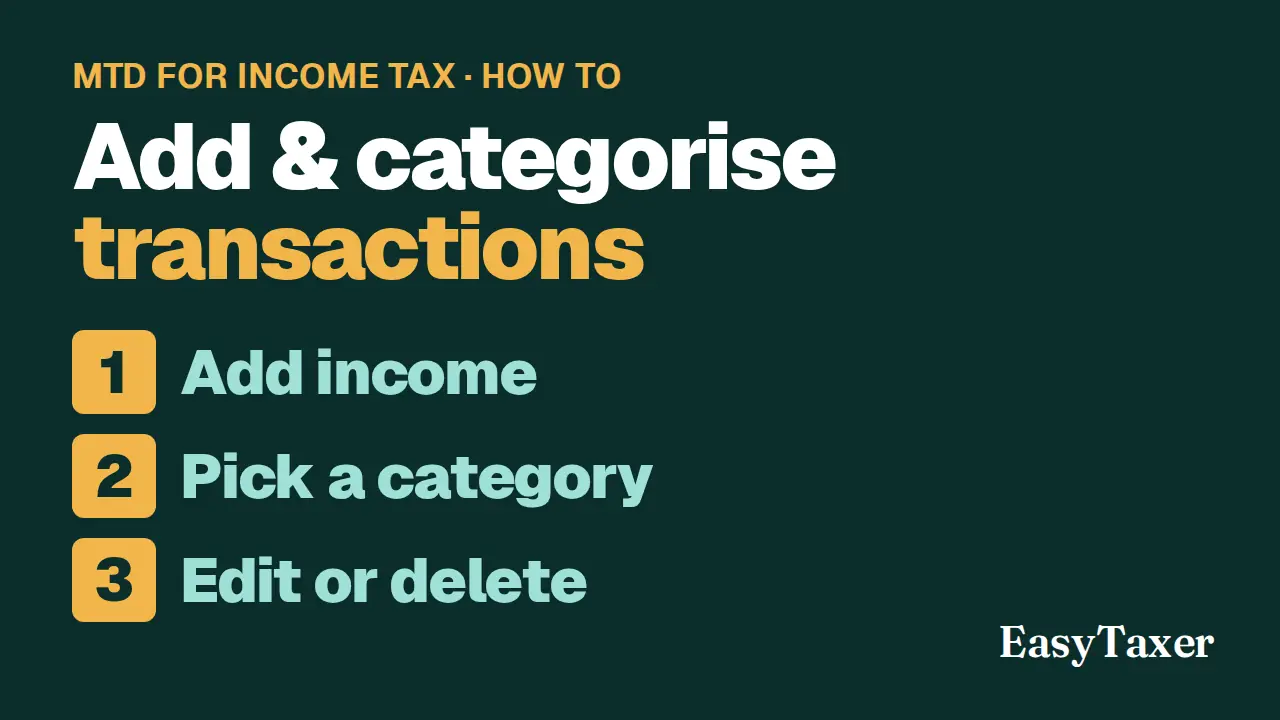
Video coming soon
Before you start
- The business shown at the top of the screen is the one the transactions are recorded for.
Step by step
- Open Transactions from the menu. Check the business shown at the top of the screen: transactions are recorded for that business.
- Select New. Choose the account, enter the date, a description and the amount.
- For money you were paid, set Transaction Type to Income and select Save.
- For a business cost, set Transaction Type to Expense and choose a Category. The category decides which HMRC expense heading the cost is reported under.
- If a cost is partly personal, enter the Business use %. Only the business share is claimed as an allowable expense.
- To change a transaction, select the pencil icon on its row, correct it and select Save.
- To remove a transaction, select the bin icon on its row and confirm Delete. Only transactions you entered yourself can be deleted.
- Your quarterly update for the period is built from these transactions.
Steps: the text version of this video
-
Transactions
Everything your business earns and spends goes into Transactions, for the business shown at the top of the screen. Your quarterly updates are built from these.
-
Add income
Select New. Choose the account, the date, a description and the amount. For money you were paid, set the type to Income, then save.
-
Add a cost and its category
For a business cost, set the type to Expense and choose a category. The category decides which of HMRC's expense headings the cost is reported under.
-
Partly personal costs
If a cost is partly personal, like a mobile phone, set the business use percentage. Only the business share is claimed as an allowable expense.
-
Edit a transaction
To change a transaction, select the pencil icon, correct it, and save.
-
Delete a duplicate
Entered something twice? Select the bin icon and confirm. Only transactions you entered yourself can be deleted.
-
Ready for your update
That's it. When the quarter ends, these transactions become the figures in your quarterly update.
What happens next
- When the quarter ends, these transactions become the figures in your quarterly update.
Related
- Also on this page in EasyTaxer: How do I attach a receipt to a transaction? (Money → Transactions, then the paperclip icon on a transaction)
- Also on this page in EasyTaxer: How do I import transactions from a spreadsheet? (Money → Transactions, then Import)
- MTD for Income Tax for sole traders - what it means for you (guide)
- How to submit a quarterly update (guide)
- Next in this playlist: How do I attach a receipt to a transaction?
- All help articles
- Still stuck? Use Contact support in the menu under your name inside EasyTaxer, or email info@easytaxer.com.
Checked against EasyTaxer on 26 September 2026. Screens can change between releases; if something here does not match what you see, please tell us.