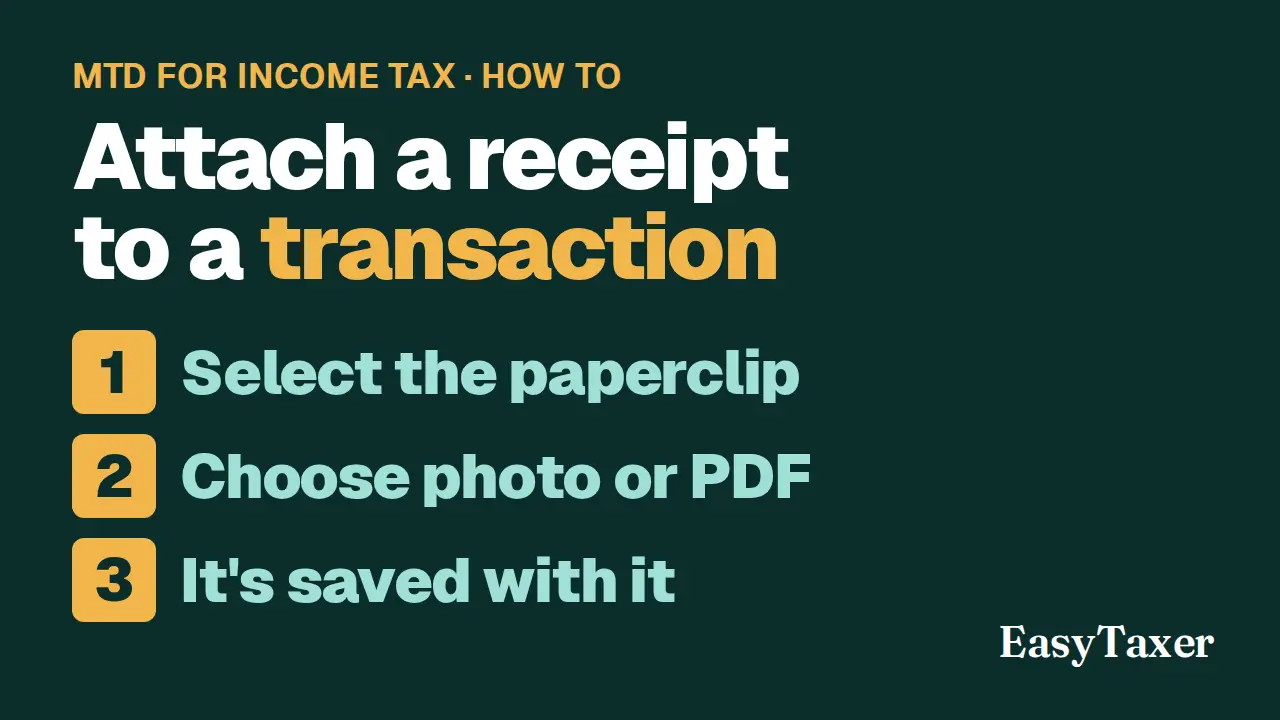
Video coming soon
Step by step
- Open Transactions and find the transaction the receipt belongs to.
- Select the paperclip icon on its row. The transaction opens with its Receipts section.
- Select Attach receipts and choose a photo or a PDF. You can attach up to 10 files to one transaction.
- The receipt uploads straight away and is listed under Receipts, where you can download it again or remove it.
- In the Transactions list, the number beside a description shows how many receipts that transaction has.
- To attach a receipt while adding a transaction, select New, fill in the transaction, select Attach receipts, then Save. The receipt uploads when you save.
- Your receipts are included in the ZIP you download from Settings, Account, Download My Data.
Steps: the text version of this video
-
Find the transaction
To keep a receipt with a cost, find the transaction in Transactions and select its paperclip icon.
-
Attach receipts
Select Attach receipts and choose a photo or a PDF. You can attach up to ten files to one transaction.
-
Saved with the transaction
The receipt uploads straight away and is listed here. You can download it again, or remove it.
-
See which have receipts
Back in the list, the number beside the description shows how many receipts a transaction has.
-
Attach while adding
You can also attach a receipt while you add a new transaction. It uploads when you save.
-
Kept with your records
Your receipts are included when you download your data from Settings.
What happens next
- Your receipts are included in the ZIP you download from Settings, Account, Download My Data.
Related
- On the same page in EasyTaxer: How do I add, categorise, edit and delete transactions for my self-employment?
- MTD for Income Tax for sole traders - what it means for you (guide)
- Getting started with EasyTaxer (guide)
- Previous in this playlist: How do I add, categorise, edit and delete transactions for my self-employment?
- Next in this playlist: How do I import transactions from a spreadsheet?
- All help articles
- Still stuck? Use Contact support in the menu under your name inside EasyTaxer, or email info@easytaxer.com.
Checked against EasyTaxer on 26 September 2026. Screens can change between releases; if something here does not match what you see, please tell us.